Overview: Interface & Navigation
Use the overview image and table to identify the major areas of the Rapid Access interface.
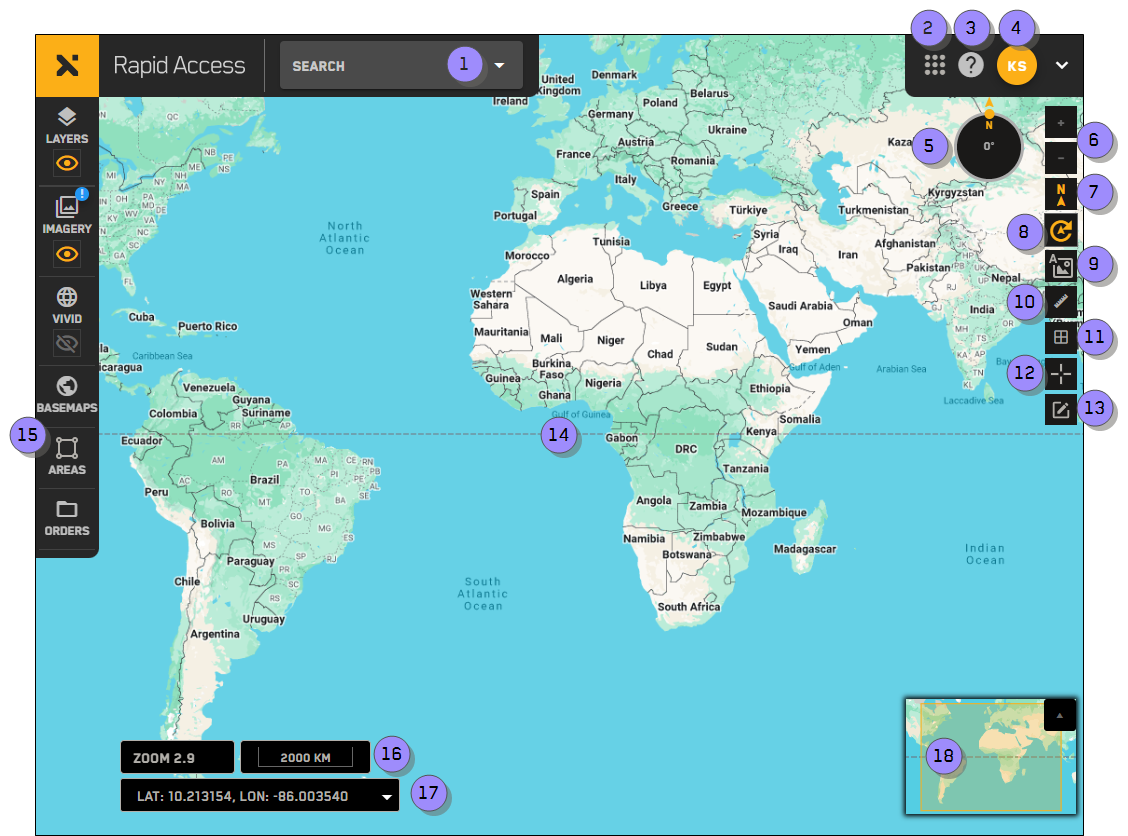
| Numbered Area / ICON | Description | User Guide References |
|---|---|---|
1 Search | Search for and jump to a location. You can search using location names, addresses, or coordinates. | |
2 9-Grid Icon
| Quickly navigate to other MGP sites. |
|
3 Help
| Open the Rapid Access Online Help. | |
4 User Profile Menu
| View your user profile and log out of the system. | |
5 Rotation Compass | Shows the current viewport rotation. Visible when rotation is turned on  . . | |
6 Zoom
| Zoom in and out of the viewport. | |
7 North
| Reset the viewport to North. If the viewport is already oriented to North, the icon is yellow | |
8 Rotate
| Rotate the viewport to get a better view of a location. | |
9 Map Labels
| Add an overlay of roads, city names, and other points of interest to the viewport. | |
10 Measure Distance
| Measure the distance between multiple points in the viewport. | |
11 MGRS Grid
| Toggle the Military Grid Reference System (MGRS) grid overlay. | |
12 Map Pins
| Add a map pin to indicate the coordinates of a location. Toggle the Map Pins tool to see a list of your pins. | |
13 Map Annotations
| Annotations allow you to identify areas of an image. You can add several types of annotations to an image, including circles, rectangles, and polygons. | |
14 Viewport | View imagery in this area. | |
15 Side Panel | Open side-panel tools (e.g., Imagery, Areas, Orders) | |
16 Zoom Level and Scale Bar | Your current zoom level.
| |
17 Coordinates | View the map coordinates at your cursor location, and change the coordinate system used in Rapid Access. | |
18 Minimap | Shows the relative location of the current viewport. As you zoom in on the viewport, the minimap also zooms to show a surrounding region. |


 /
/ 
 /
/ 
 .
. /
/ 
 /
/ 
 /
/ 
 /
/ 
 /
/ 
 /
/ 
| Numbered Area / ICON | Description |
|---|---|
1 Search | Search for and jump to a location. You can search using location names, addresses, or coordinates. |
2 9-Grid Icon
| Quickly navigate to other MGP sites. |
3 Help
| Open the Rapid Access Online Help. |
4 User Profile Menu
| View your user profile and log out of the system. |
5 Rotation Compass | Shows the current viewport rotation. Visible when rotation is turned on . |
6 Zoom
| Zoom in and out of the viewport. |
7 North
| Reset the viewport to North. If the viewport is already oriented to North, the icon is yellow |
8 Rotate
| Rotate the viewport to get a better view of a location. |
9 Map Labels
| Add an overlay of roads, city names, and other points of interest to the viewport. |
10 Measure Distance
| Measure the distance between multiple points in the viewport. |
11 MGRS Grid
| Toggle the Military Grid Reference System (MGRS) grid overlay. |
12 Map Pins
| Add a map pin to indicate the coordinates of a location. Toggle the Map Pins tool to see a list of your pins. |
13 Map Annotations
| Annotations allow you to identify areas of an image. You can add several types of annotations to an image, including circles, rectangles, and polygons. |
14 Viewport | View imagery in this area. |
15 Side Panel | Open side-panel tools (e.g., Imagery, Areas, Orders) |
16 Zoom Level and Scale Bar | Your current zoom level.
|
17 Coordinates | View the map coordinates at your cursor location, and change the coordinate system used in Rapid Access. |
18 Minimap | Shows the relative location of the current viewport. As you zoom in on the viewport, the minimap also zooms to show a surrounding region. |