Rotating the Viewport
You can use rotation to get the best view of a location. When you rotate the viewport, a compass appears next to the zoom tool to indicate the current angle of rotation. Rotating the viewport rotates everything visible on the map, including imagery, basemaps,
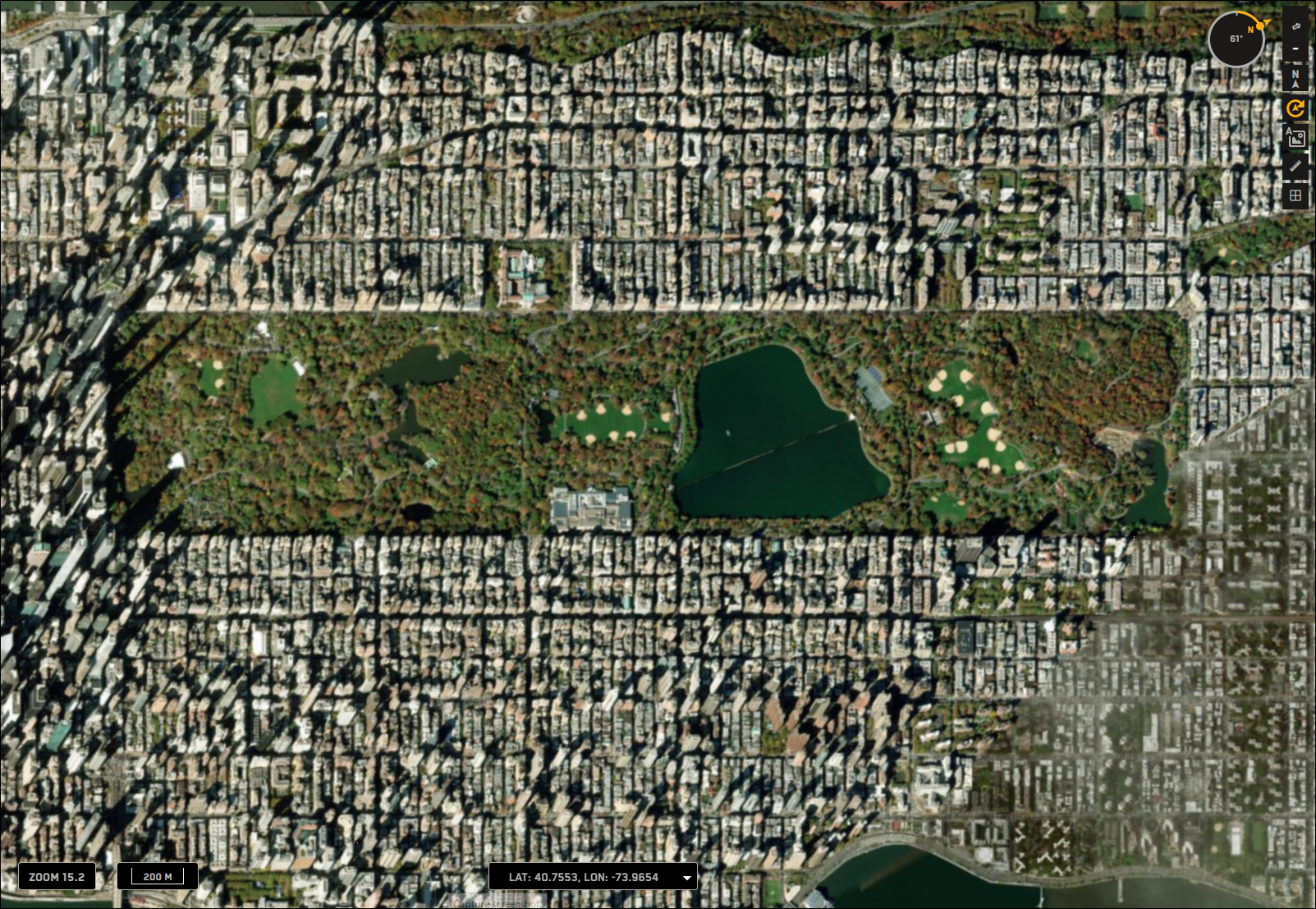
By default, an image of Central Park in New York City shows the park on an angle. By rotating the viewport to 61°, you can fit more of the park in the viewport and view it at a "grid-like" angle.
Do any of the following:
Display the Compass Select Rotate
 . The compass opens.
You can also press and hold ALT on Windows or press Command ⌘ on Mac to open the compass.
Rotate the Viewport In the compass, click and drag the yellow pointer. The value in the center of the compass indicates the angle of rotation.
The following images show examples of the rotation compass.
 Rotated 132° |  Rotated 0°, Oriented North |
The Rotate and North buttons have different appearances based on different rotation situations.
 | Viewport rotated |
| Compass hidden, OR viewport oriented North |
 | Viewport oriented North |
 | Viewport not oriented North |