Using the Rapid Access Online Help
The Rapid Access Online Help is available to assist you while you are using the application. You can view the Rapid Access Online Help on any web-enabled device, including a phone or tablet.
Select
 . The Rapid Access Online Help opens in a new tab.
Icons and Options in the Rapid Access Online Help
When viewing a topic in the Rapid Access Online Help, you have several options for navigation and search.
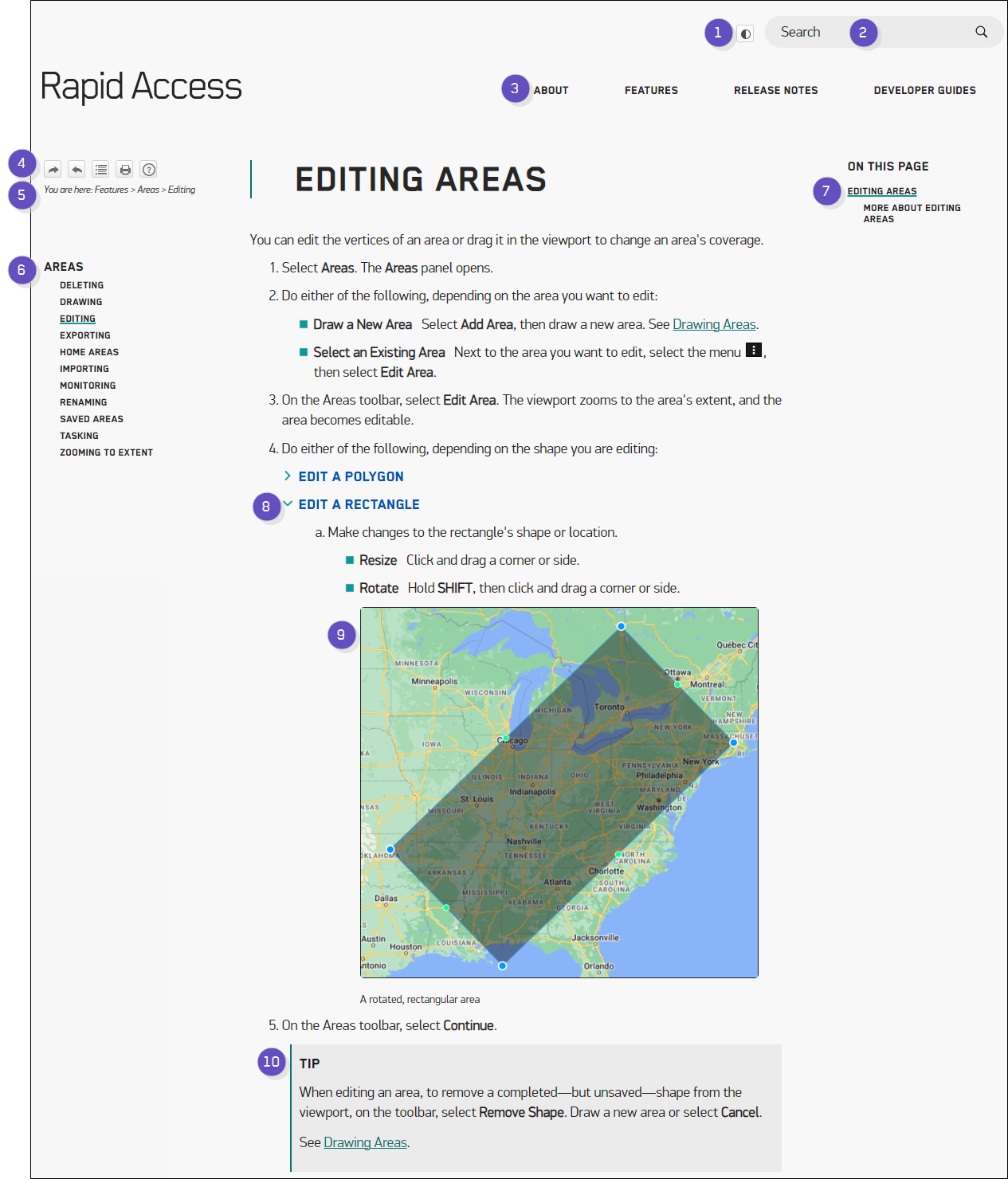
 Expand for Details
| Numbered Area | Description | ||||||||||||
|---|---|---|---|---|---|---|---|---|---|---|---|---|---|
1 Light/Dark Mode | Switch between viewing the Rapid Access Online Help in light or dark mode. Your browser remembers your preference. | ||||||||||||
2 Search | Search the entire Rapid Access Online Help for a specific term. | ||||||||||||
3 Top Navigation | Browse the Rapid Access Online Help using the top navigation menu. Select a topic to open it. When viewing the Rapid Access Online Help on a smaller screen, the top navigation menu does not display. Instead, select the menu | ||||||||||||
4 Help Controls | Navigate the Rapid Access Online Help, print topics, and more. View Help Controls
| ||||||||||||
5 Breadcrumbs | View your relative location in the help system. Breadcrumbs are linked, so you can select any portion of the path to jump to that page in the Rapid Access Online Help. | ||||||||||||
6 Section Navigation | Browse topics in the current Rapid Access Online Help section from the left-side navigation menu. Section navigation is not available on smaller screens. | ||||||||||||
7 Page Navigation | Browse headings on the current page. Select a link to jump to that heading. Page navigation is not available on smaller screens, such as phones and tablets. | ||||||||||||
8 Drop-Down Content | Some content in the Rapid Access Online Help—such as lists, additional information, or steps with multiple options—is nested within drop-down menus. This allows topics to load quickly and scroll smoothly. Select the Expand All Drop-Downs | ||||||||||||
9 Image | Select an image to expand its thumbnail. Thumbnail images allow each topic to load quickly and scroll smoothly. If a thumbnail image does not provide enough detail, select it to view a larger image. | ||||||||||||
10 Notes | Notes, tips, and other information boxes appear throughout the Rapid Access Online Help to call your attention to supplemental helpful information. Note TypesThe general note types are:
|
 to open or close a right-side navigation menu and navigate the