Using Tasking Templates
If you use the same tasking request frequently, you can save it as a template. Templates pre-populate tasking parameters in the tasking wizard so you can quickly create and update a tasking request.
Creating a Tasking Template
If you want to reuse the parameters from your tasking request, you can quickly create a tasking template from the Summary page of the tasking wizard.
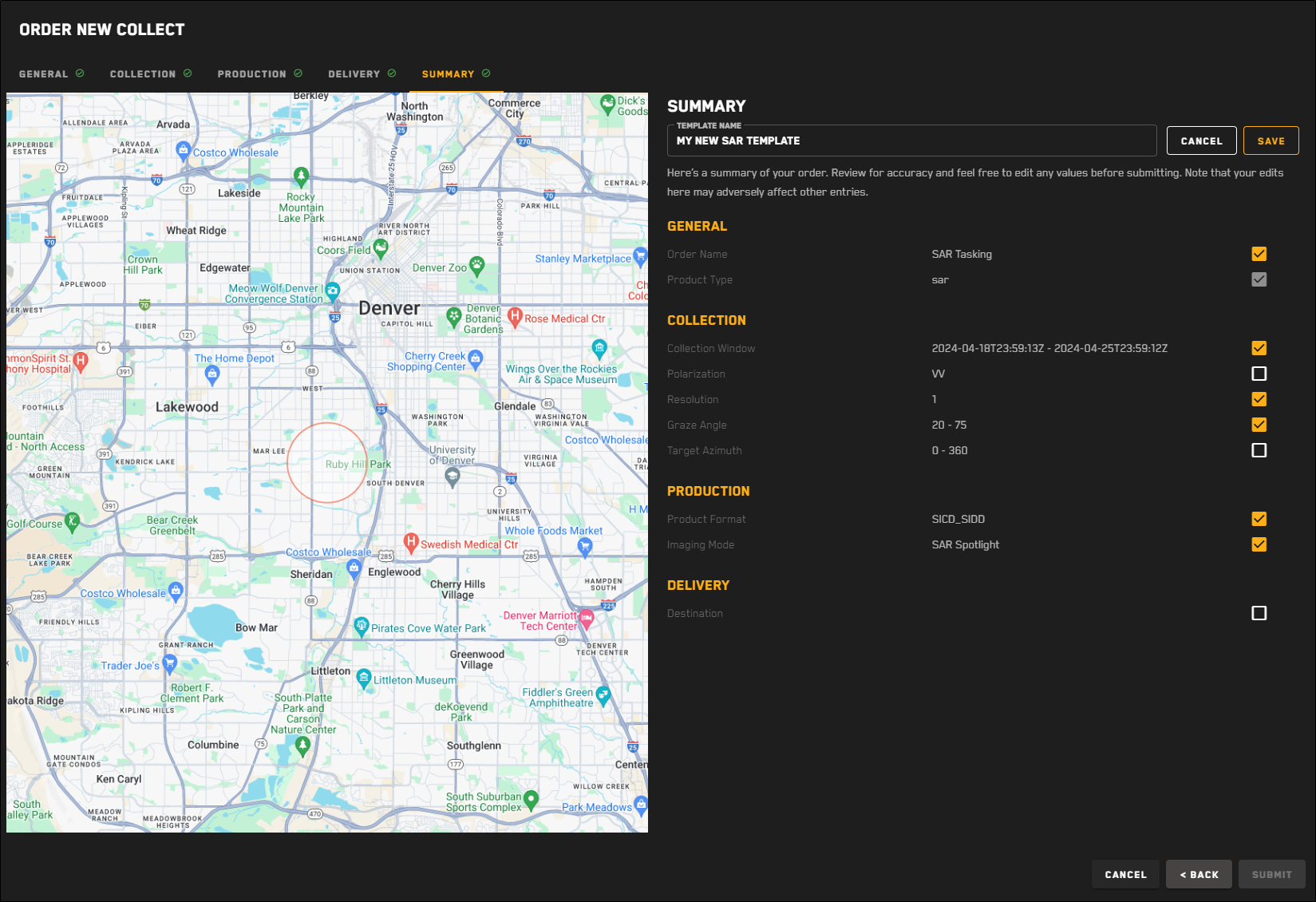
Creating a tasking template.
Create a tasking request using the tasking wizard. See Placing Single Tasking Requests: EO or Placing Single Tasking Requests: SAR.
On the Summary page of the tasking wizard, select Create Template.
Checkboxes display next to each parameter. Select the checkboxes next to the parameters want to include in the template. Most parameters are included by default.
Parameters with a gray checkmark are automatically included and cannot be turned off.
In the Template Name field, enter a name for the template.
The Template Name must be unique.
Select Save. An alert appears, notifying you that the template has been saved.
You can now use the template when you create a new tasking request.
When you select a template, the parameters from the template are pre-populated, but you can edit them as necessary if you need to make changes.
Deleting a Tasking Template
If you no longer need a tasking template, you can delete it.
Open the tasking interface. See Placing Single Tasking Requests: EO or Placing Single Tasking Requests: SAR.
From the Use Template drop-down, locate the template you want to delete, then select Delete
 .
.A confirmation dialog asks you if you want to delete the template. To delete the template, select Delete Template. Otherwise, select Cancel.
Deleting a template is permanent. You cannot recover a deleted template; if you want to use a deleted template again, you will need to recreate it.