Viewing Order History
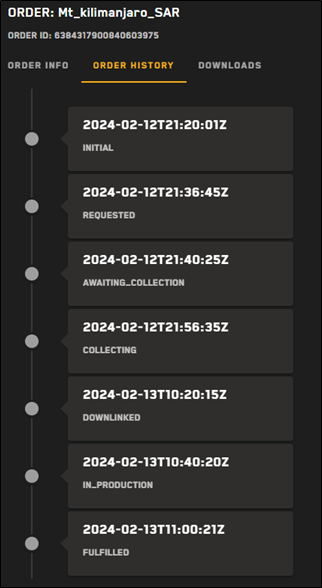
The Order History tab shows an order's progress from initial placement to completion. On this tab, you can follow the order and view date and timestamps to see when each step of the order took place.
Select Orders. The Orders panel opens.
Locate the order for which you want to view the history. See Filtering Orders and Searching Orders.
In the Actions column, select the menu
 , then select View. The Order Details page opens to the Order Info tab.
Select the Order History tab. Here, you can view each step of the order process with date and timestamps.
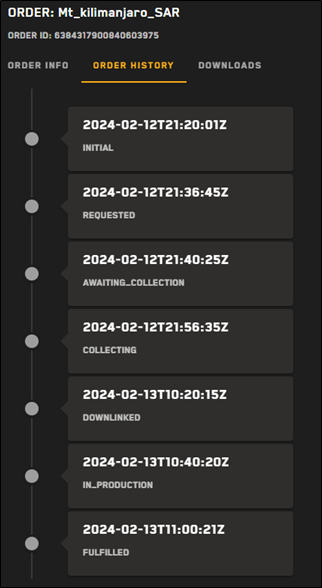
An example of order statuses.