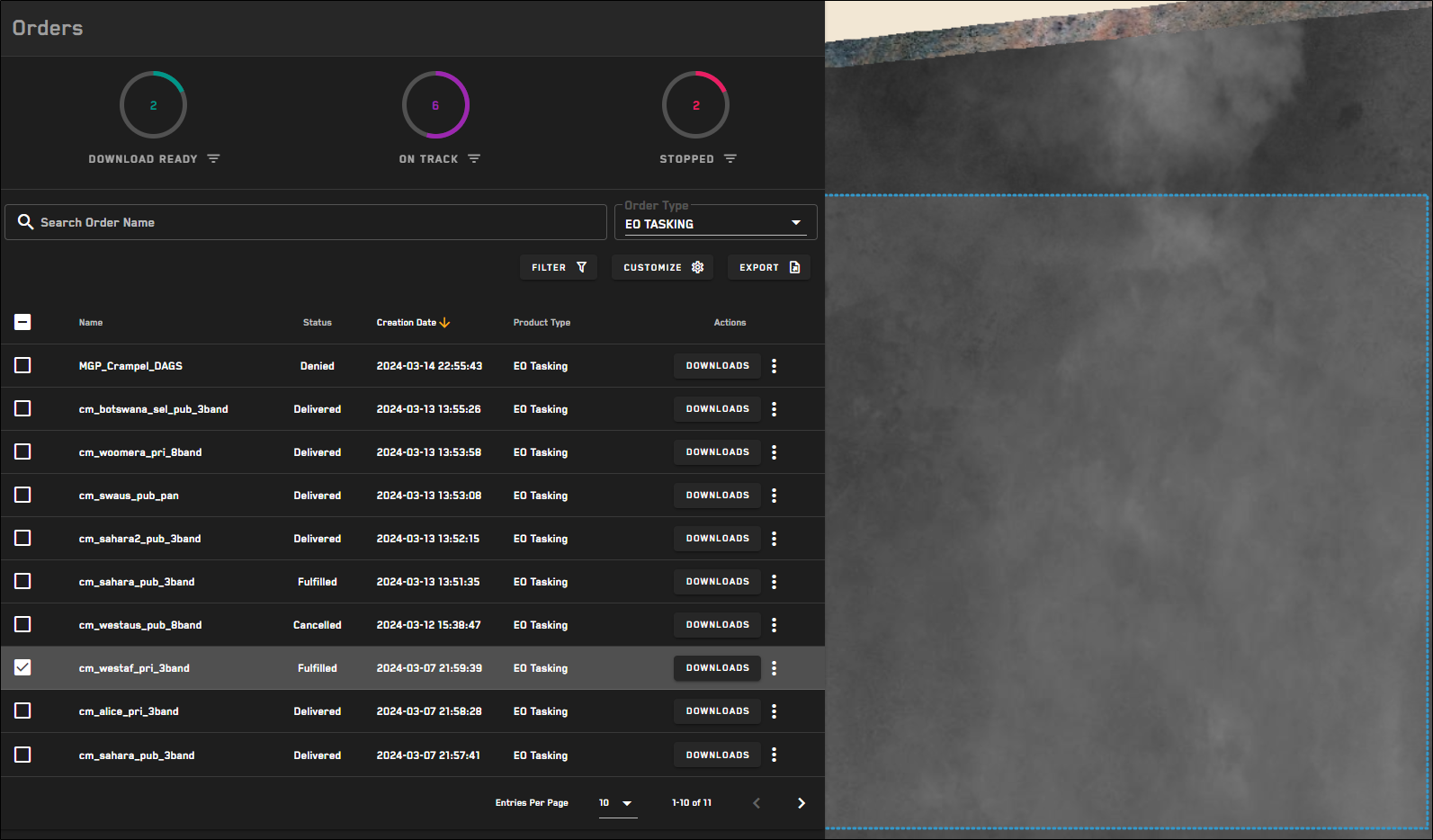
Overview: Orders Panel
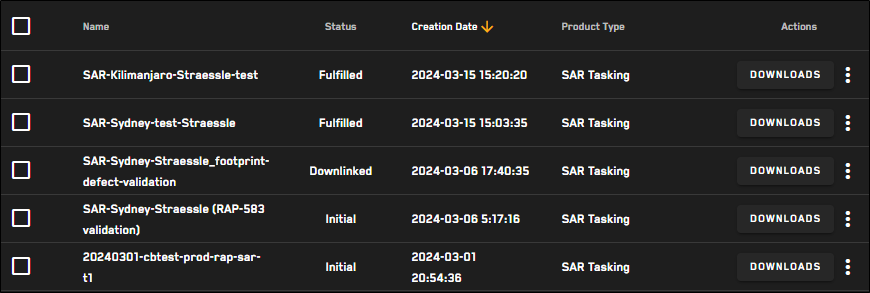
Examples of orders with various statuses.
To customize the columns in the Orders table, select Customize, then select the toggle next to each column that you want to show or hide.
By default, orders are sorted in descending order by last modified date/time. Select the sort arrow at the top of any column to sort the table in ascending or descending order by that column.
 | Sorted in ascending order. |
 | Sorted in descending order. |
Searching Orders
You can use search to locate a specific order.
Select Orders. The Orders panel opens.
From the Order Type drop-down, select the type of order you want to search (e.g., MGP ordering, tasking).
In the Search Order Name field, enter the keyword or value you want to search for.
The Search Order Name field is case-sensitive.
To clear the search, delete the search term or select
 .
.
You can also filter the Orders table using a variety of filters. See Filtering Orders.
Using the ORders Dashboard
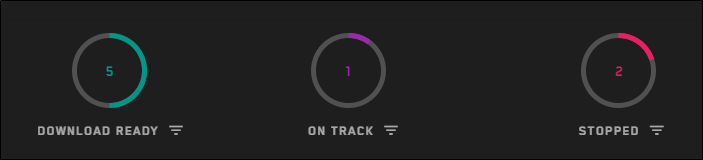
The dashboard at the top of the Orders panel visualizes how many orders are ready to download, are on track (e.g., in production, delivering), or are stopped (e.g., canceled, reorder required).
Filter Next to any dashboard, select the filter icon
 to quickly filter by all orders with the selected status.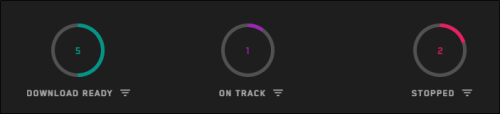
Use the dashboard to quickly view and filter by order status.