Sorting Imagery
Sort options allow you to change the order of the imagery that appears in the Imagery panel, so you will see the imagery that is most relevant to you.
Sorting Imagery Using the Sort By Menu
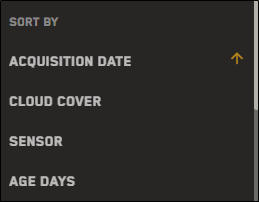
You can use the Sort By menu in both card view and list view to change the order imagery appears in the Imagery panel.
On the Imagery panel toolbar, select Sort
 . The Sort By menu opens.
 Select any sortable metadata attribute to sort the Imagery panel by that attribute.
To sort a column in ascending or descending order, select the arrow at the top of any column.
The active metadata field appears in yellow with an arrow to indicate sort direction.

Not sorted/default sort

Sorted in ascending order.

Sorted in descending order.
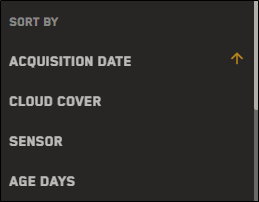
Sorting online imagery using the Sort By menu.
Sorting Imagery Using List View
List view allows you to see large amounts of image metadata in one place. You can sort the list by column to help you find imagery that fits your specific criteria.
On the Imagery panel toolbar, select List View
 .
.Next to any sortable metadata field, select the arrow. Metadata fields without an arrow are not sortable.
To sort a column in ascending or descending order, select the arrow at the top of any column.
The active metadata field appears in yellow with an arrow to indicate sort direction.
Not sorted/default sort
Sorted in ascending order.
Sorted in descending order.
Add or remove metadata fields from list view using the Toggle Attribute Visibility
 dialog. See Working with Metadata: Changing Visible Metadata Attributes.
More About Sorting Imagery
Sortable and filterable metadata fields are different when you are viewing archive imagery than when you are viewing online imagery. When viewing archive imagery, sorting is limited to Acquisition Date, Cloud Cover, and Off Nadir Angle (both in the Sort By menu and when using sort arrows in the Imagery panel). This is a limitation of the Archive Discovery API. See Metadata Differences When Sorting and Filtering Archive and Online Imagery.
Changing the sort order will re-render imagery in the viewport. This will likely change the existing stacking order (even if the Imagery panel was locked).
If you select a metadata field from the Sort By menu that is hidden in list view, the column is automatically added to list view (even if you are currently in card view) so you can see all the relevant information about the image. See Working with Metadata: Changing Visible Metadata Attributes.