Comparing Imagery
You can compare two or more images to see how an area has changed over time.
Select Imagery. The Imagery panel opens.
From the Imagery Catalog drop-down, select the imagery catalog (e.g., online, archive) you want to view.
Select the images you want to compare.
Some imagery is automatically selected to provide the best coverage of the area; you can keep this imagery or select new images. The number of selected images displays at the top of the Imagery panel. See Selecting Imagery.

In this example, there are 11 images selected.
Select the With Selected menu
 , then select Compare.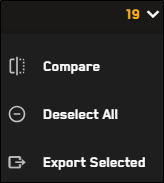
Compare is only available if two or more images are selected.
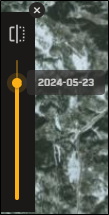
The Compare slider displays next to the Imagery panel (or above it, if the panel is horizontal). Drag the slider back and forth to see how the area has changed over time.

Drag the compare slider to view imagery in an area over time. The date of each image displays next to the slider.