Downloading Orders
You can download certain types of orders from the Order Details page.
Select Orders. The Orders panel opens.
Locate the order you want to download.
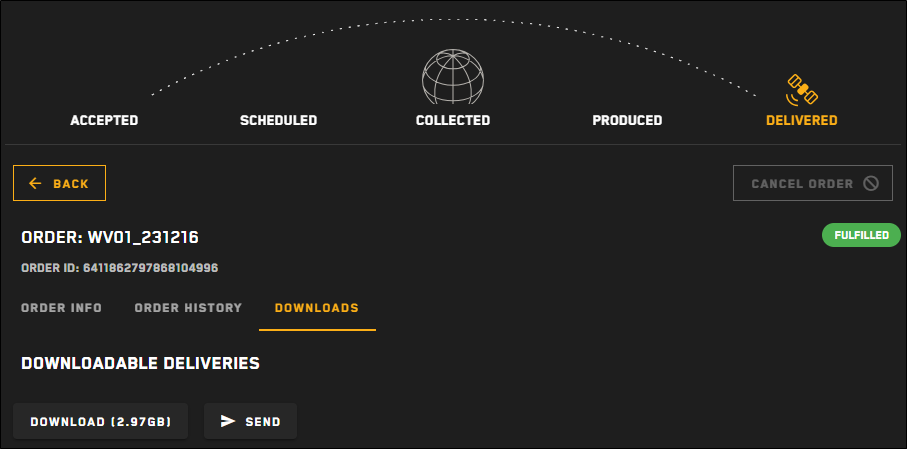
In the Actions column, select Downloads. The Order Details page opens to the Downloads tab.
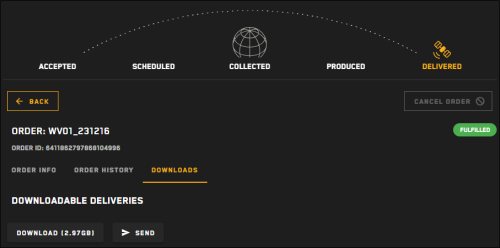
Downloads tab
Do one of the following, depending on how you want to download the order.
 Download the File(s) to Your Computer
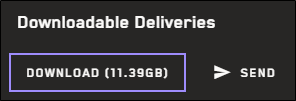
Select Download. Your order downloads as a ZIP file.
The Download button indicates the size of the file download. You can download files smaller than 50GB. Larger files must be downloaded using an S3 Bucket or FTP location. See Send the File(s) to an S3 Bucket or FTP Location.
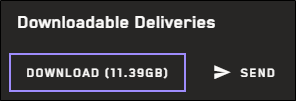
The file size displays when the order is ready to download.
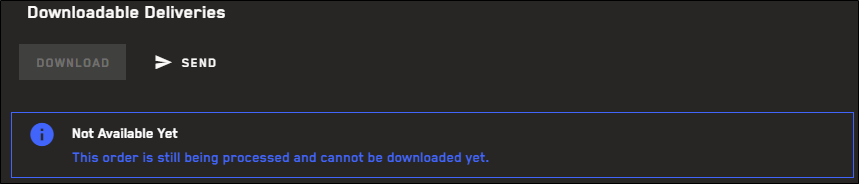
You cannot download an order until it has finished processing and the order is ready for delivery. Orders that are still being zipped prior to delivery display an Awaiting Delivery status in the Orders panel.
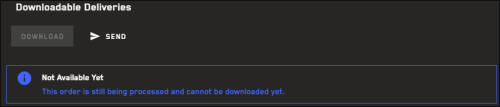
If an order is still processing, you will see a message that it is not available to download.
Send the File(s) to an S3 Bucket or FTP LocationSelect Send, then select the type of file transfer you want to use for the download. The corresponding dialog opens.
You can use these options to add additional S3/FTP delivery locations to existing orders. There is no limit on the number of additional delivery locations that can apply to a single order.
You cannot remove existing delivery locations. Also, previous delivery locations are not displayed.
FTP Server(Optional) If you want to use a previously saved location for the order, select it from the Saved Locations drop-down.
Select your protocol, then enter your credentials, host, port, and directory.
To verify the connection, select Test Connection.
A successful connection test is required to save the location and to
(Optional) To save the location to use again later, select Save as Location. The location is added to the Saved Locations drop-down.
Select Send.
S3 Bucket(Optional) If you want to use a previously saved location for the order, select it from the Saved Locations drop-down.
Enter your S3 bucket, folder, region, access key, and secret access key.
To verify the connection, select Test Connection.
A successful connection test is required to save the location and to
(Optional) To save the location to use again later, select Save as Location. The location is added to the Saved Locations drop-down.
Select Send.
More About Downloading Orders
When your order is complete, you will receive an email from the order service with a link back to Rapid Access. You will notice your order ID in the URL parameters (e.g., “https://<your Rapid Access URL>.rap.maxar.com/?order_id=<xxx>“).
Adding any order ID to the Rapid Access URL opens the Downloads tab for that order.
If you add an order ID that does not match one of your orders, the "order_id" parameter is ignored.
You will also receive status emails when your order is received, when it is complete, and if it fails.
Some orders cannot be downloaded. For example, completed orders that were placed using the "ingest to streaming" delivery option cannot be downloaded, as they are instead ingested to the online imagery catalog in the Imagery panel.
If you want to download these images, use the Send button in the Downloadable Deliveries section to send the imagery to an FTP server or S3 bucket. See Send the File(s) to an S3 Bucket or FTP Location.