Managing Your Password
If you forget your password, you can change it from the Login page.
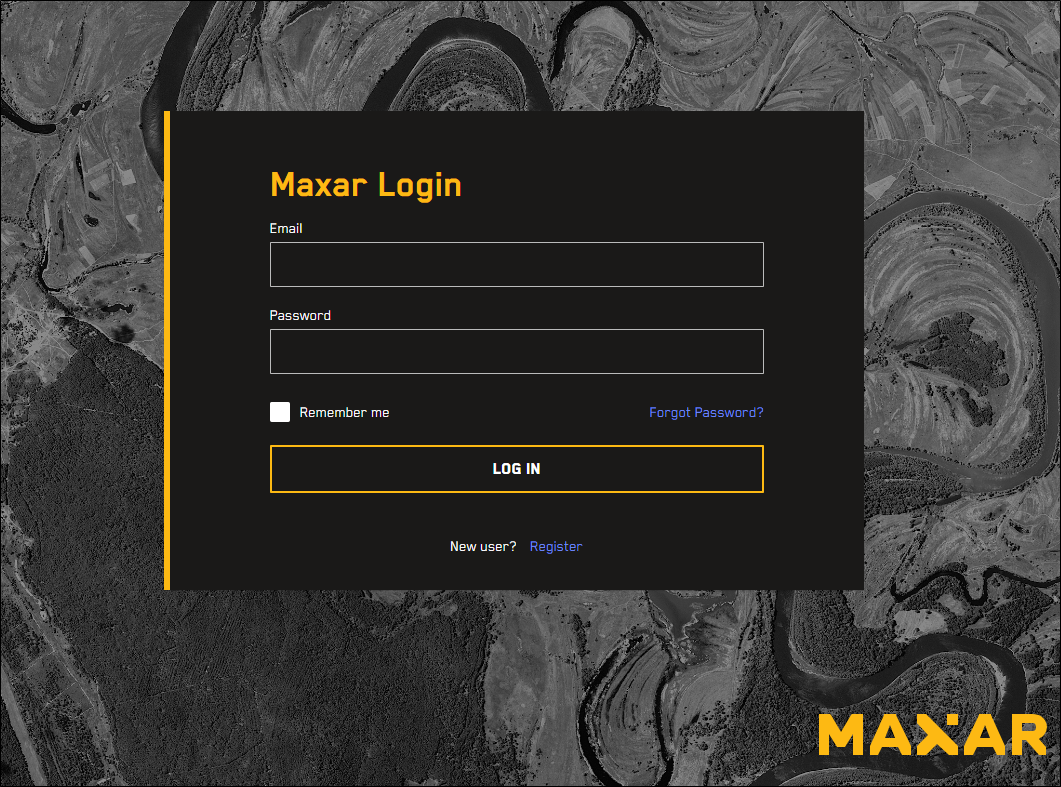
Open an Internet browser and go to https://<your Rapid Access URL>.rap.maxar.com. The Login page opens.
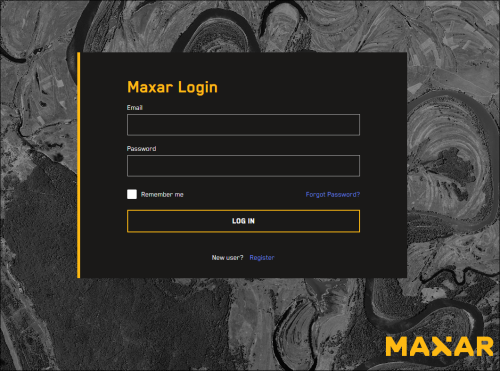
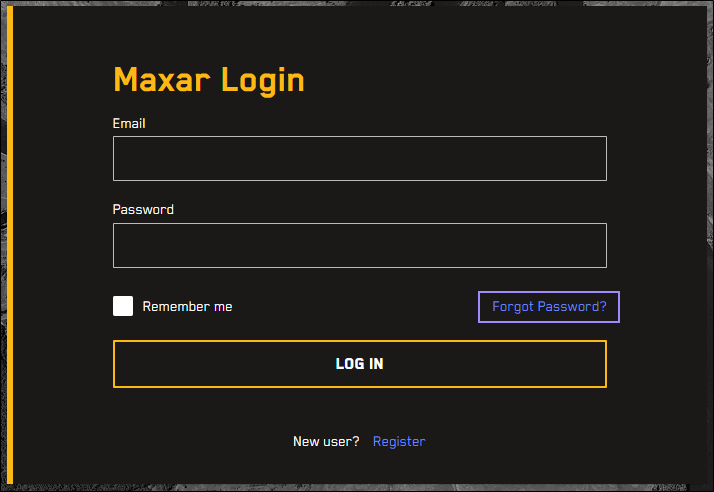
On the Login page, select Forgot Password?
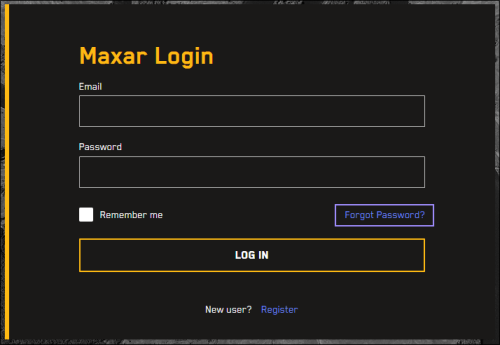
Reset your password from the Login page.
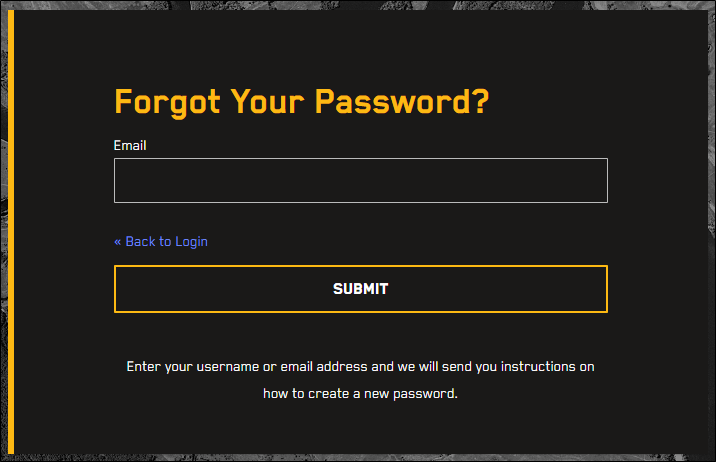
On the Forgot Your Password? page, enter your email, then select Submit.
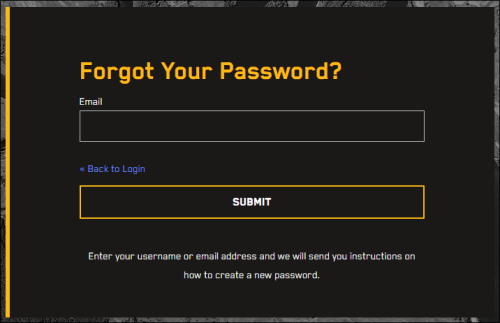
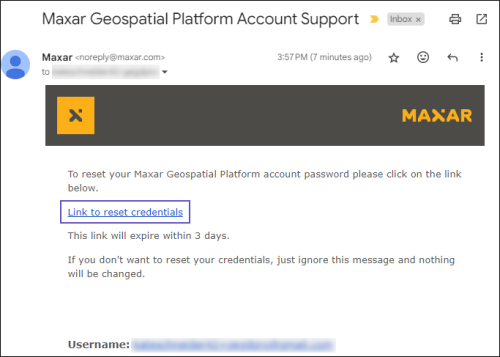
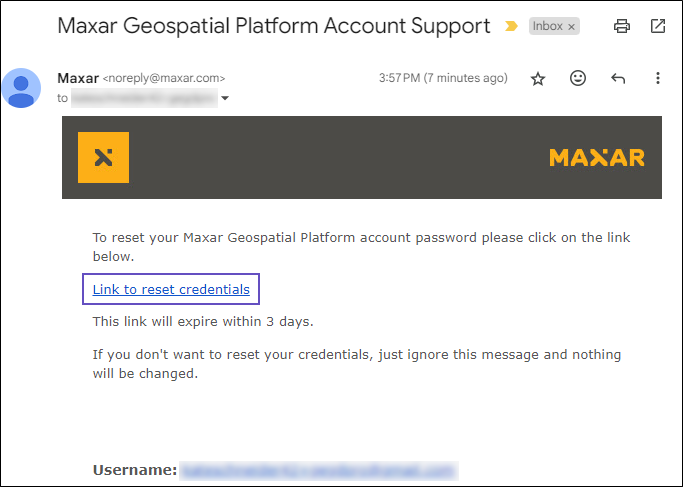
You will receive an email with instructions on how to update your password.
In the account update email, select Link to reset credentials.
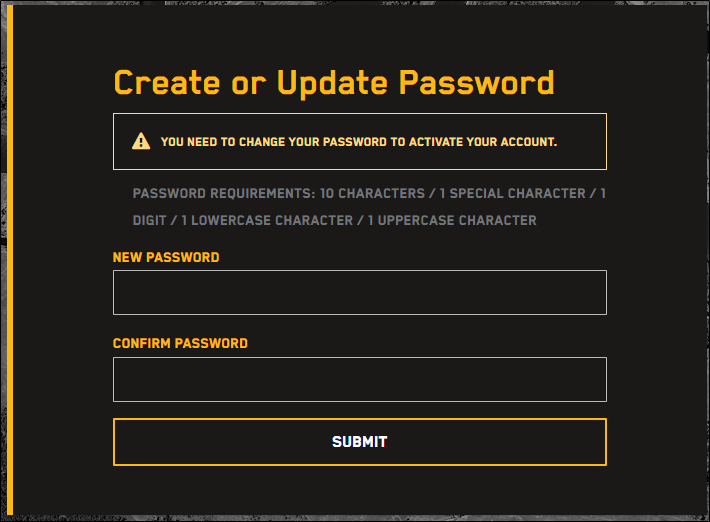
The Create or Update Password page opens.
In the fields, enter and confirm a new password.
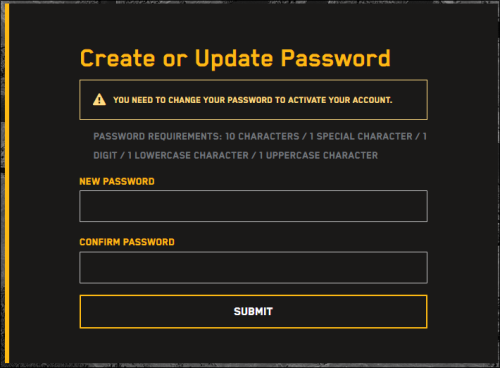
Select Submit. A confirmation dialog opens. You can now use your new password to log in
Passwords expire after 90 days. When your password expires, you are required to change it before you can log in to Rapid Access.